On this page
Text Formatting
Bold Text
To make text bold, use ** or __ around the word or phrase:
Example: This text is bold or This text is bold
Italic Text
To italicize text, use * or _ around the word or phrase:
Example: This text is italic or This text is italic
Underline Text
To underline text, use HTML <u> tags:
Example:
<u>This text is underlined</u>
Result:
This text is underlinedStrikethrough
To strike through text, use ~~ around the word or phrase:
Example: This text is struck through
Button
// This button has creative-fill hover animation

<Button
  hoverEffect="creative-fill"
  label="Creative Fill"
  url="/"
/>

// This button has magnetic hover animation

<Button hoverEffect="magnetic" label="Magnetic" url="/" />

// This button has text-flip hover animation

<Button hoverEffect="text-flip" label="Text Flip" url="/" />

// This button combines the magnetic and text-flip hover animations

<Button
  hoverEffect="magnetic-text-flip"
  label="Magnetic With Text Flip"
  url="/"
/>
<Button
  variant="circle"
  hoverEffect="magnetic-text-flip"
  label="Magnetic With Text Flip"
  url="/"
/>
This button has creative-fill hover animation
Creative FillThis button has magnetic hover animation
MagneticThis button has text-flip hover animation
Text FlipThis button combines the magnetic and text-flip hover animations
Magnetic With Text FlipButton Variants
Pick a look with variant: fill (the default), outline, fill-white, text, or circle.
<Button variant="circle" label="Example Button" url="/" />
<Button label="Example Button" url="/" />
<Button variant="outline" label="Example Button" url="/" />
<Button
  variant="outline"
  label="With External Link"
  url="https://astro.build"
/>
<Button variant="text" label="Example Button" url="/" />Accordion
<Accordion label="Example Accordion Label 01" group="accordion-01" expanded="true">

Every project starts with a short call and a written brief. Pick the scope that fits the work.

- **Identity**: Logo, type, and colour, with a short guide for the people who use them.
- **Packaging**: Labels, boxes, and tape for small runs, with print files checked against your printer's specs.
- **Art direction**: A shot list, set styling, and a day on set with the photographer.

</Accordion>

<Accordion label="Example Accordion Label 02" group="accordion-01" expanded="false">

Every project starts with a short call and a written brief. Pick the scope that fits the work.

- **Identity**: Logo, type, and colour, with a short guide for the people who use them.
- **Packaging**: Labels, boxes, and tape for small runs, with print files checked against your printer's specs.
- **Art direction**: A shot list, set styling, and a day on set with the photographer.

</Accordion>

---

<Accordion label="Example Accordion Label 03" group="accordion-01" expanded="false">

Every project starts with a short call and a written brief. Pick the scope that fits the work.

- **Identity**: Logo, type, and colour, with a short guide for the people who use them.
- **Packaging**: Labels, boxes, and tape for small runs, with print files checked against your printer's specs.
- **Art direction**: A shot list, set styling, and a day on set with the photographer.

</Accordion>Every project starts with a short call and a written brief. Pick the scope that fits the work.
- Identity: Logo, type, and colour, with a short guide for the people who use them.
- Packaging: Labels, boxes, and tape for small runs, with print files checked against your printer’s specs.
- Art direction: A shot list, set styling, and a day on set with the photographer.
Tab
<Tabs>
  <Tab name="Overview">
    **What do I work on?** Identities, packaging, print, and art direction for
    small makers. Pick a tab to see how a project runs. - Discovery - Design -
    Hand-off
  </Tab>

  <Tab name="Discovery">
    **Discovery: Start where the work is made** I spend time with the product
    before I draw anything. You get: - A written brief - A reference board - A
    list of every place the brand appears
  </Tab>
</Tabs>What do I work on?
Identities, packaging, print, and art direction for small makers. Pick a tab to see how a project runs.
- Discovery
- Design
- Hand-off
YouTube Video
<VideoInline src="rFVpSwgCkCo" provider="youtube" />Custom Video
<VideoInline
  src="/videos/test-video.mp4"
  provider="html5"
  poster="/images/home/studio-reel.jpg"
/>
Callout
Use a callout to pull a note, tip, warning, or danger out of the text. type is note (default), tip, warning, or danger. Without a title, the type name is shown.
<Callout type="note">
  A project card takes its cover from the `image` field in the project frontmatter.
</Callout>

<Callout type="tip" title="Check proofs at real size">
  Print a page at 100% before you sign off. Type that reads well on screen can be too small on a label.
</Callout>

<Callout type="warning">
  Colours print duller on uncoated paper than they look on screen. Ask for a printed proof before the full run.
</Callout>

<Callout type="danger" title="Before the plates are made">
  After this point every change costs a new set of plates. Check names, prices, and barcodes on the final proof.
</Callout>
Note
A project card takes its cover from the image field in the project frontmatter.
Check proofs at real size
Print a page at 100% before you sign off. Type that reads well on screen can be too small on a label.
Warning
Colours print duller on uncoated paper than they look on screen. Ask for a printed proof before the full run.
Before the plates are made
After this point every change costs a new set of plates. Check names, prices, and barcodes on the final proof.
<Notice> still works and renders the same callout: info → note, success → tip, warning → warning, error → danger.
Steps
Wrap headings in <Steps> to number them. Each ## or ### heading starts a step, and everything below it belongs to that step.
<Steps>

### Install the dependencies

```bash
npm install
```

### Run the site locally

Run `npm run dev` and open the local address it prints. Pages reload as you edit files in `src/content/`.

### Build the site

Run `npm run build`. The finished site is written to `dist/`, ready to upload to any static host.

</Steps>
Install the dependencies
npm installRun the site locally
Run npm run dev and open the local address it prints. Pages reload as you edit files in src/content/.
Build the site
Run npm run build. The finished site is written to dist/, ready to upload to any static host.
File Tree
Write a nested list inside <FileTree>. A name that ends in / (or has children) is a folder, bold highlights an entry, and text after the name is a comment.
<FileTree>

- src/
  - config/
    - config.toml site settings
  - content/
    - projects/
      - english/
        - **ceramic-forms.md** one case study
      - french/
- package.json

</FileTree>- src/
- config/
- config.tomlsite settings
- content/
- projects/
- english/
- ceramic-forms.mdone case study
- french/
- english/
- projects/
- config/
- package.json
Keyboard Keys
Press <Kbd>⌘</Kbd> <Kbd>K</Kbd> to open search, or <Kbd keys={["Ctrl", "K"]} /> on Windows and Linux.Press ⌘ K to open search, or CtrlK on Windows and Linux.
Blockquote
To create a blockquote, start the line with a >:
Example:
I keep a notebook of every glaze, paper, and proof from a project.
The answer to the next brief is often already in it.Hugo Merrin
Code
To format inline code, use backticks (`):
Example: This is inline code
For multi-line code blocks, use triple backticks (```):
Example:
---
import type { z } from "astro/zod";
import config from ".astro/config.generated.json";
import SectionIntro from "@/components/widgets/SectionIntro.astro";
import SubscriptionForm from "@/components/widgets/SubscriptionForm.astro";
import { getEntryCTM } from "@/lib/contentParser.astro";
import overrideObjects from "@/lib/utils/overrideObjects.ts";
import type { newsletterSectionSchema } from "@/sections.schema";

export type NewsletterSection = z.infer<typeof newsletterSectionSchema>;

type Props = {
  content?: Partial<NewsletterSection>;
};

const defaultContent = (
  await getEntryCTM("sections", "newsletter-section", Astro.currentLocale)
)?.data as NewsletterSection;

const {
  enable = true,
  eyebrow,
  title,
  description,
  note,
} = overrideObjects(
  { ...defaultContent },
  Astro.props.content,
) as NewsletterSection;

// The form posts to `[settings.subscription]` in config.toml
const { subscription } = config.settings;

if (!enable || !subscription?.enable) return;
---

<section class="newsletter-section">
  <div class="frame">
    <div
      class="flex flex-col gap-8 lg:flex-row lg:items-end lg:justify-between">
      <SectionIntro eyebrow={eyebrow} title={title} description={description} />
      <div class="w-full lg:max-w-md" data-reveal="up">
        <SubscriptionForm
          id="newsletter"
          enable={true}
          layout="inline"
          formAction={subscription.formAction}
          mailchimpTagValue={subscription.mailchimpTagValue}
          note={note}
        />
      </div>
    </div>
  </div>
</section>
Add a title to the fence to label the block:
---
title: "Marrow Kiln"
description: "A label system for a small ceramics studio whose glazes change with every firing."
client: "Marrow Kiln"
year: "2025"
services: ["Brand identity", "Packaging"]
image: "/images/projects/ceramic-forms/cover.jpg"
---
Code Tabs
Wrap fences in <CodeTabs> to show alternatives, such as package managers. The selected tab is remembered across blocks and pages.
<CodeTabs>

```bash title="npm"
npm install
```

```bash title="pnpm"
pnpm install
```

</CodeTabs>
npm installpnpm installyarn installbun installnpm run buildpnpm run buildyarn run buildbun run buildHorizontal Rule
To create a horizontal rule, use three or more dashes (---), asterisks (***), or underscores (___) on a new line:
Example:
Headings
Create headings by adding # symbols before your text. Add custom classes in brackets [.class-name].
Example:
# Heading 1 [.custom-class .mt-0! .another-class]
## Heading 2 [.custom-class .mt-0! .another-class4]
### Heading 3 [.custom-class .mt-0! .another-class]
#### Heading 4 [.custom-class .mt-0! .another-class]
##### Heading 5 [.custom-class .mt-0! .another-class]
###### Heading 6 [.custom-class .mt-0! .another-class]
Table
Create tables using pipes (|) and dashes (-):
Example:
| Client | Project | Services |
|---|---|---|
| Marrow Kiln | Label system | Branding, packaging |
| Werrin Paper | Envelope system |
Images
Local Image 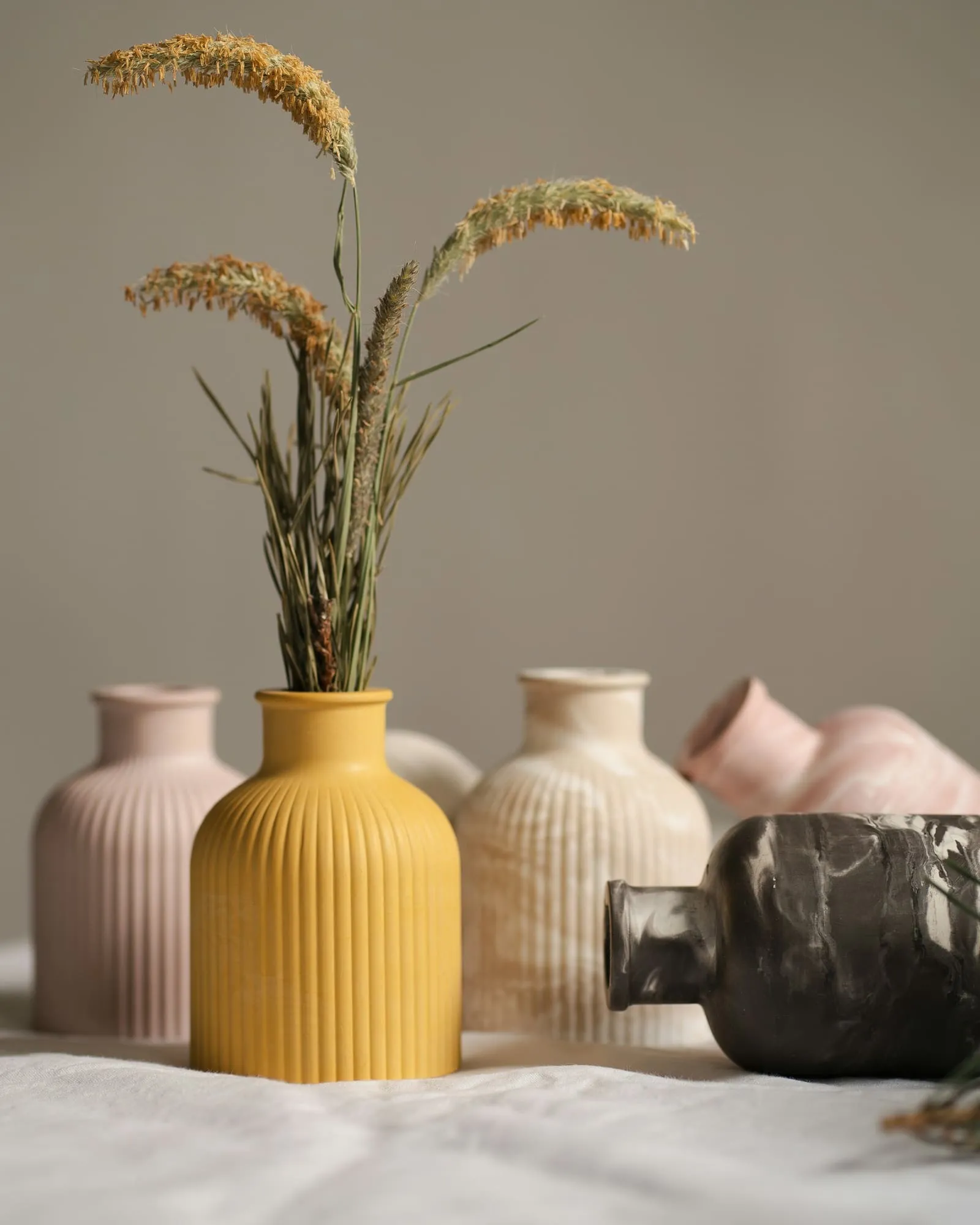
Components
Styled List
<ListCheck>

- **One label per colour**: Every new product needed its own label, so it took a week to reach the shelf.
- **A mark that filled in**: The old logo lost its detail on stamps, tape, and swing tags.
- **Files in one inbox**: Print files lived with one person, so every reorder waited for them.

</ListCheck>- One label per colour: Every new product needed its own label, so it took a week to reach the shelf.
- A mark that filled in: The old logo lost its detail on stamps, tape, and swing tags.
- Files in one inbox: Print files lived with one person, so every reorder waited for them.
Information Block Card
<CardWrapper>
  <Card
    title="Brand identity"
    description="Logo, type, and colour, with a short guide for the people who use them every day."
    icon="PenTool"
    buttonLabel="Start a project"
    buttonUrl="/contact/"
  />
  <Card
    title="Packaging"
    description="Labels, boxes, and tape for small runs, with print files checked before they go to press."
    icon="Package"
    buttonLabel="Start a project"
    buttonUrl="/contact/"
  />
</CardWrapper>
Brand identity
Logo, type, and colour, with a short guide for the people who use them every day.
Packaging
Labels, boxes, and tape for small runs, with print files checked before they go to press.
Image List With Video
<ImageList>
  <ImageItem
    imageSrc="/images/projects/ceramic-forms/gallery-1.jpg"
    imageAlt="Ten stacked ring-shaped vessels in mustard, blue, blush, sage, and white glazes in a row on linen."
    videoSrc="rFVpSwgCkCo"
  />
  <ImageItem
    imageSrc="/images/projects/envelope-system/gallery-1.jpg"
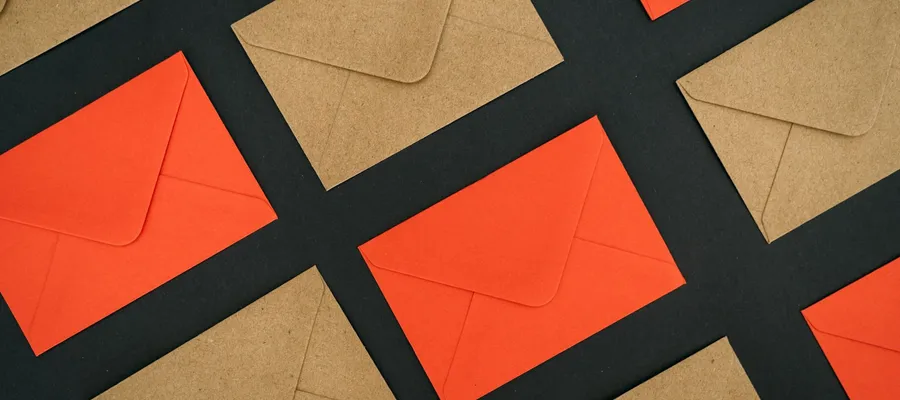
    imageAlt="Kraft and vermilion envelopes arranged on the diagonal in a tight grid on black."
    videoSrc="/videos/test-video.mp4"
    videoProvider="html5"
  />
  <ImageItem
    width="1/2"
    imageSrc="/images/projects/colour-fan/gallery-1.jpg"
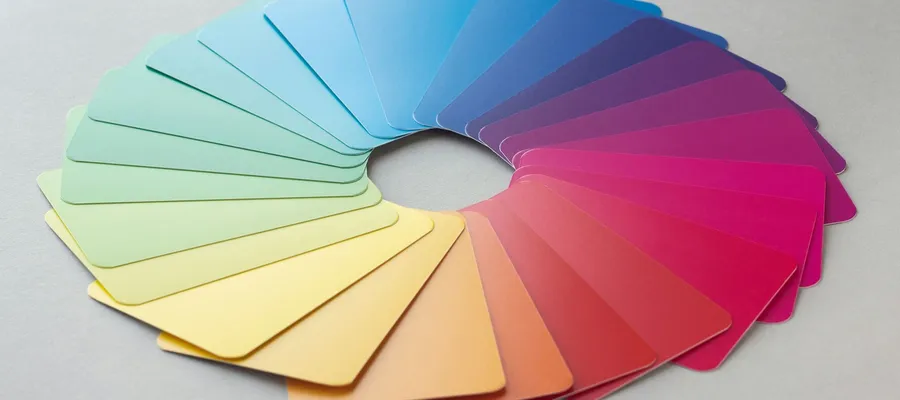
    imageAlt="Pastel swatch cards fanned into a ring on a white surface, running from yellow through blue to pink."
  />
  <ImageItem
    width="1/2"
    imageSrc="/images/projects/screen-print/gallery-1.jpg"
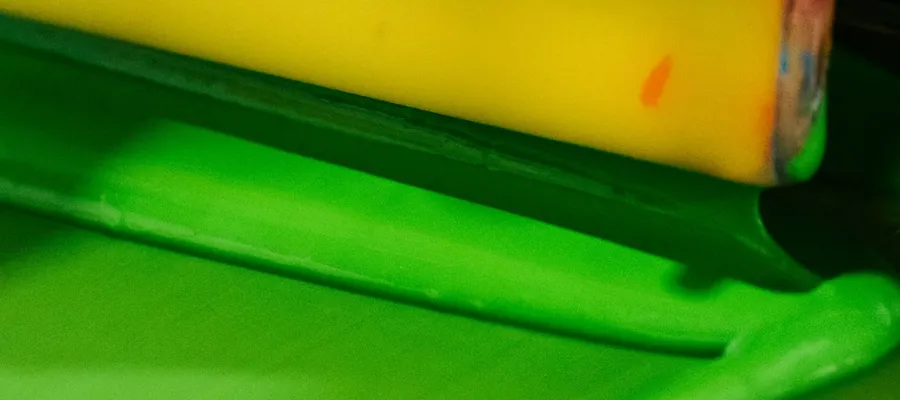
    imageAlt="A yellow squeegee pushing bright green ink across a screen, seen up close."
  />
</ImageList>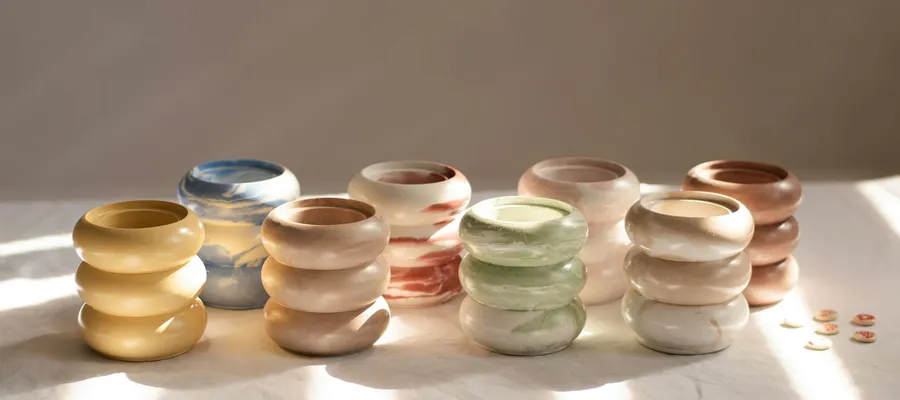
Testimonial
The following code generates the testimonial shown below.
<Testimonial
  customerImage="/images/people/client-1.jpg"
  customerName="Joel Ashcombe"
  customerRole="Founder"
  customerCompanyLogo="/images/logos/marrow-kiln.svg"
  customerCompanyName="Marrow Kiln"
>
  Hugo spent a morning in the kiln room before he drew anything. The labels
  read like our glaze notebook, and our stockists noticed straight away.
</Testimonial>
Hugo spent a morning in the kiln room before he drew anything. The labels read like our glaze notebook, and our stockists noticed straight away.

Founder


